
Convert to Webp
WebP images are usually much smaller than JPG or PNG at similar visual quality, which makes web pages load faster. Add your images, choose the quality, and the converter creates WebP versions in your browser, showing the before-and-after size for each. Transparency from PNGs is kept. Download files individually or all at once as a ZIP.
- Free to use
- No sign-up
- Runs in your browser
WebP converter
Web Image Optimisation Kit
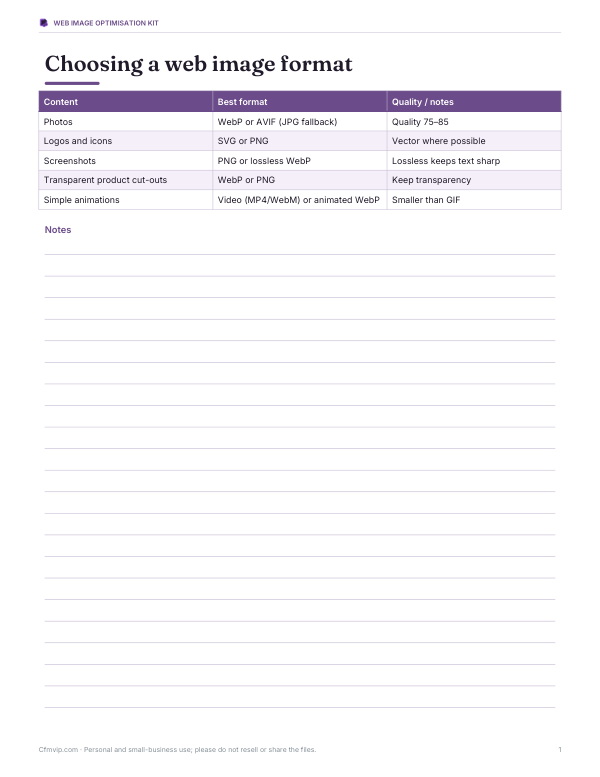
Printable web image format guide, a page weight audit workbook, an image optimisation checklist and a responsive image size planner.
- Format guide (PDF)
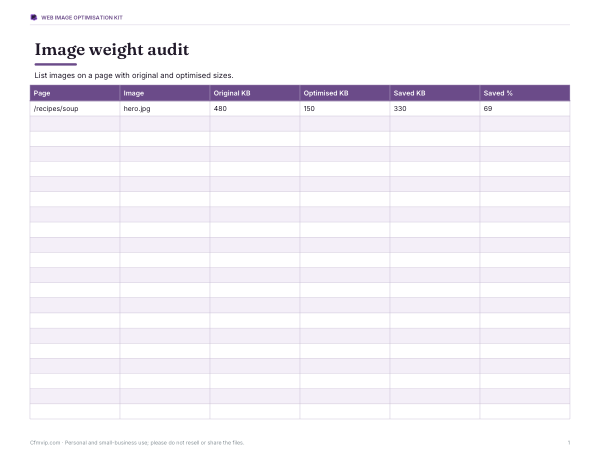
- Page weight audit (XLSX)
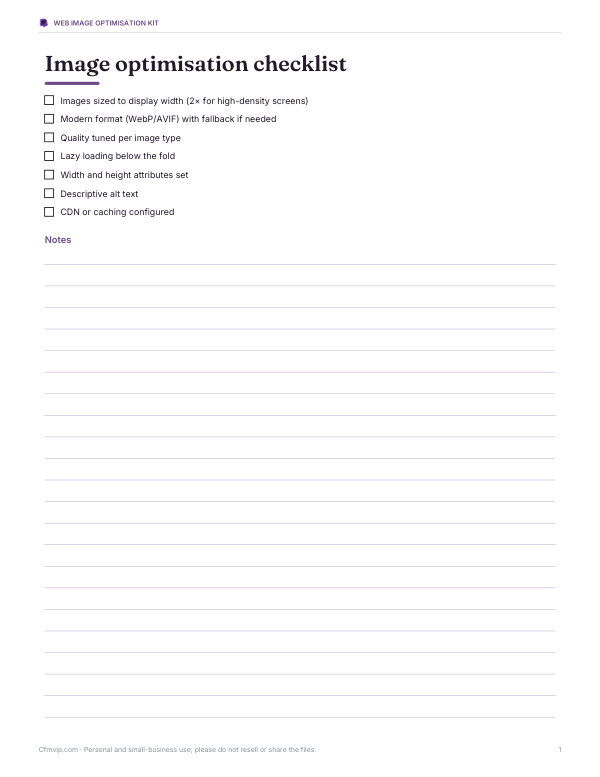
- Optimisation checklist (PDF, DOCX)
- Responsive size planner (PDF, DOCX, XLSX)
Formats: PDF, XLSX, DOCX. Instant download after payment (link valid 72 hours, up to 5 downloads). AI-assisted: the templates were drafted with AI help and reviewed and laid out before publishing.
$3.00 USD, one-time 4 files · about $0.75 each
- Instant download
- 7-day refund
- Secure checkout by Stripe
7-day money-back guarantee. Full refund within 7 days of purchase, even after you download.
Free sample: Image Optimisation Checklist (PDF, 72 KB)
Full refund within 7 days — see the refund policy and license.
Free printables
Single sheets you can print right now, no sign-up. The full pack adds every sheet in one download plus the editable files.
 Printable Responsive Image Size Planner
What WebP is
WebP is an image format developed by Google that supports both lossy compression (like JPG) and lossless compression (like PNG), as well as transparency and animation. For photos, lossy WebP is typically noticeably smaller than a JPG of similar visual quality; for graphics with transparency, it is often much smaller than PNG. All major current browsers — Chrome, Edge, Firefox and Safari — display WebP, which is why it is widely used to speed up websites.
How to convert images to WebP
- Add one or more images — JPG, PNG, GIF (first frame) or BMP.
- Set the quality: around 75–85 suits most photos; 90+ keeps more fine detail; 100 is highest quality but larger.
- Optionally set a maximum width to shrink large photos at the same time.
- Click Convert and compare the before and after sizes.
- Download each file or all of them as a ZIP.
Transparency in PNGs is preserved in the WebP output, so logos and cut-out product images keep their transparent backgrounds.
Choosing the quality setting
| Quality | Use | Result |
|---|---|---|
| 90–100 | Photography portfolios, product detail images | Minimal visible loss, larger files |
| 75–85 | Most website photos and blog images | Good balance of size and quality |
| 60–70 | Thumbnails and background images | Small files; some softness in fine detail |
| Below 60 | Previews and placeholders | Visible artefacts |
Compare the preview at 100% zoom with the original. If you cannot see a difference, try a lower quality to save more space.
When WebP is not smaller
Occasionally a WebP file comes out larger than the original — usually when the source was already a small, heavily compressed JPG, or a simple PNG graphic with very few colours. The converter shows the size change for each file so you can keep whichever version is smaller. Converting an already-compressed image cannot recover quality that was lost in the first compression.
Using WebP on a website
- Upload the WebP files and reference them in your pages like any other image.
- Keep descriptive file names and alt text for accessibility and search.
- For maximum compatibility with very old browsers, use the HTML picture element with a WebP source and a JPG fallback.
- Many content management systems and CDNs can serve WebP automatically; check your platform before converting manually.
- Set image width and height attributes to prevent layout shifts while pages load.
Worked example
A blogger converts 12 photos from a recipe post. The original JPGs average 480 KB each, 5.8 MB in total. At quality 80 with a maximum width of 1600 px, the WebP versions average 150 KB — about 1.8 MB in total, roughly a 70% reduction — and look the same at normal viewing size. The post now loads noticeably faster on mobile connections.
WebP vs AVIF vs JPG vs PNG
| Format | Best for | Notes |
|---|---|---|
| JPG | Photos, maximum compatibility | No transparency; lossy only |
| PNG | Screenshots, logos, sharp graphics | Lossless; large for photos |
| WebP | Web photos and graphics | Smaller than JPG/PNG in most cases; transparency |
| AVIF | Web photos where smallest size matters | Often smaller than WebP; slower to encode; newer |
Animated images
WebP also supports animation and usually produces much smaller files than animated GIFs. This converter saves the first frame of an animated GIF as a still WebP; to convert animations, use a tool that handles animated WebP specifically, or better, convert the animation to a short MP4 or WebM video, which is smaller still and supported everywhere.
Checking quality before publishing
- Open the original and the WebP side by side at 100% zoom.
- Look at edges, text, skin tones and smooth gradients such as skies, where compression artefacts appear first.
- If you see blockiness or banding, raise the quality by 5–10 and convert again.
- If they look identical, try a lower quality to save more space.
- Use the same quality for similar images so your site looks consistent.
Metadata and colour
Converting through a browser canvas does not carry over camera metadata such as location and camera model, which can be a privacy benefit for images published online. Colour profiles are handled by the browser; for colour-critical work such as professional photography, check converted images against the originals on a calibrated display.
Batch conversion tips
When converting a whole folder for a website, use the same quality setting for all photos so they look consistent, and set a maximum width that matches your site’s largest display size — there is no benefit in serving 4000-pixel photos in an 800-pixel column. Name files descriptively before converting, because the WebP files keep the original names with a new extension. Keep the originals in a separate folder so you can re-export at a different size or quality later without losing detail.
Privacy
Images are converted entirely in your browser. Nothing is uploaded or stored.
Frequently asked questions
How do I convert JPG to WebP?
Add the JPG, choose the quality and click Convert, then download the WebP.
Does WebP support transparency?
Yes. PNG transparency is kept in the WebP output.
Is WebP supported by all browsers?
All major current browsers display WebP.
Why is my WebP larger than the original?
The original was already highly compressed; keep the original or lower the quality.
Are my images uploaded?
No, conversion happens on your device.
Can I convert WebP back to JPG?
Yes, use an image converter or resizer and choose JPG as the output.
Does converting to WebP improve SEO?
Faster-loading pages are better for users, and page speed is one of many signals search engines consider; smaller images help pages load faster.